Help
Account & Data
Data is not displayed after changing model
After changing the model, you may not be able to carry over your PetnotePlus sign-in information and it may have been switched to a different account.
If you are logged in via social media, please try signing out or unsubscribing and then signing in again from the top page to see if the data is displayed.
・Sign out procedure
Settings > Account > Sign out/Withdraw
*If you are not connected, you will not be able to sign out, so please choose to cancel your membership.
Share data between different devices
If you have already logged in with social login, you can transfer data by signing in with the same account on a different device.
Confirmation of social login is performed on the following screen.
・Setting screen > Account > Social login
How to Transfer Data?
If you use social login, you can transfer your data by signing in on the new device.
Confirm your social login on the screen below.
・Settings screen > Account > Social login
How to Backup?
If you have already logged into SNS, you can transfer data by signing in with the same account on a different device.
Confirm the account link on the screen below.
・ Settings screen> Account> Account Link screen
Google sign-in error (Android)
Please check the following.
- Device Settings > Apps > Default Apps > Browser App > Select 'Chrome'
- Update the Chrome app to the latest version
Sharing
How to Share?
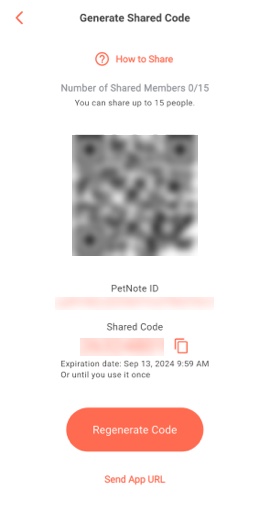
■ Shared device
1) Open Settings> Account> Share Code Generate screen
2) Generate a Shared Code
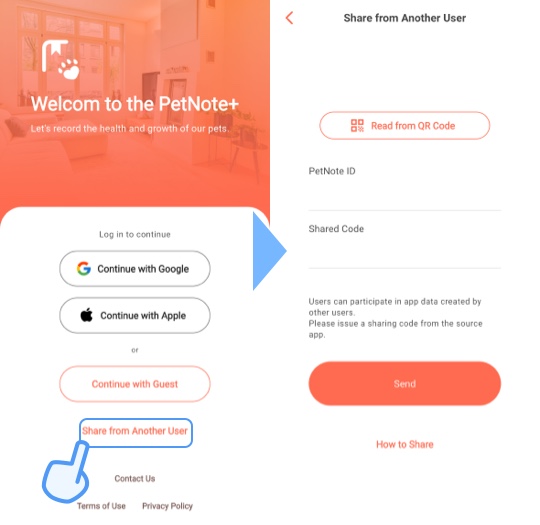
■ Participating device
- If you are already signed in, you will need to sign out once.
3) Open the top > 'Share from Another User' screen
4) Enter the pet note ID and sharing code displayed on the sharing device and send
Receive notification of records added by the person who shared it
You can set to receive notifications for each Record Category.
- Open the Record Category List screen
- Tap “Notification Preferences”
- Check the record items for which you want to receive notifications.
- Tap “Done”
Shared data is not reflected
Please try uninstalling the app on the shared user's device (the one who entered the share code), then reinstalling and performing the sharing process again to see if the data appears.
Pet
Add a pet
- Tap Pet Name or 'Select Pet' at the top of the pet tab
- Tap the (+) button at the bottom right of the pet list screen
Make your own anniversary
Create an anniversary with a calendar schedule.
- Tap the calendar tab
- Tap the add button (+) on the screen
- Tap a modal appointment
- After entering the date, set the repeat every year
Changed "Family day" to another wording
You can edit from the pet edit screen.
- Tap your pet's profile
- Tap Change text for "Family Day"
Change gender notation
Change from the setting screen.
- Open the setting screen
- Tap Display settings
- Tap the gender notation
Stop updating pet age for some reason
If you set the update stop date from the pet edit screen, the count of the age and the date of welcoming your family will stop.
- Tap your pet's profile
- Tap the update stop date to set
Records
Sort the Record Categories or Expense Categories
After tapping the "Edit" button on the upper right of the list screen of each Category, you can sort by long-pressing and moving the item.
Change the unit of recorded items from kg to g, etc.
You can freely change it from the record item edit.
- Tap the edit button next to 'All Records' on the pet home screen
- Tap the record item you want to change
- Edit the 'unit' to the desired character string and save it.
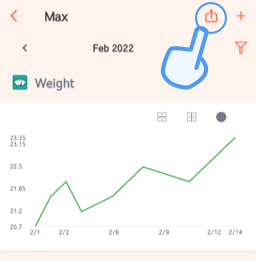
CSV Export
You can do this from the Record Summary screen.
- Tap the Record Category
- Select the export period
- Tap the export button at the top right of the screen
- An output dialog will be displayed, so select any save method.
Reminders such as medicine time
Record Category List> Reminders can be set for each item from the button on the right of each item.
Display records as daily summary
You can set each record category to display a daily total.
- Tap the record category on the pet tab to open the record summary screen.
- Tap the filter icon at the top right of the screen.
- Tap 'Daily Total' under 'Group' and tap Done.
Notifications
Not notified
Please check the following.
■ For iOS
- Open the iPhone settings app
- Select notification
- Select PetnotePlus +
- Make sure Allow notifications is turned on
■ For Android (The procedure may differ depending on the device)
- Open settings
- Select an app
- Select PetnotePlus +
- Select notification
- Make sure notification permission is turned on